
- Apply
- Visit
- Request Info
- Give


Visit Accommodate Symplicity Login, select > Faculty > enter your full email address and email password.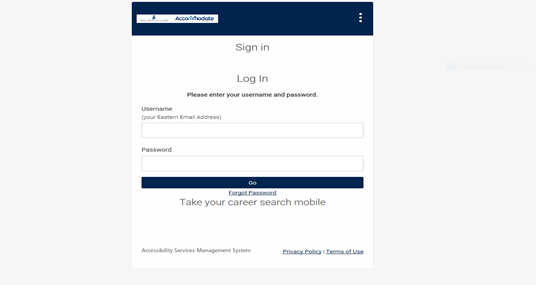
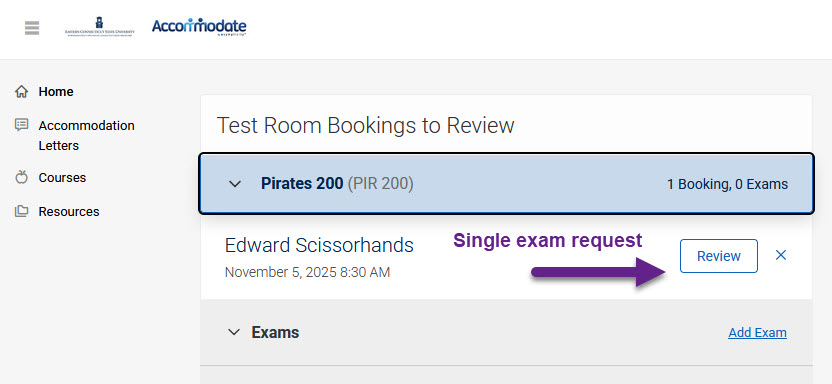
(B) Multi-exam steps:
Uploading for multiple students or if you have multiple attachments (i.e., exam, scantron sheet, etc.). Select >Add Exam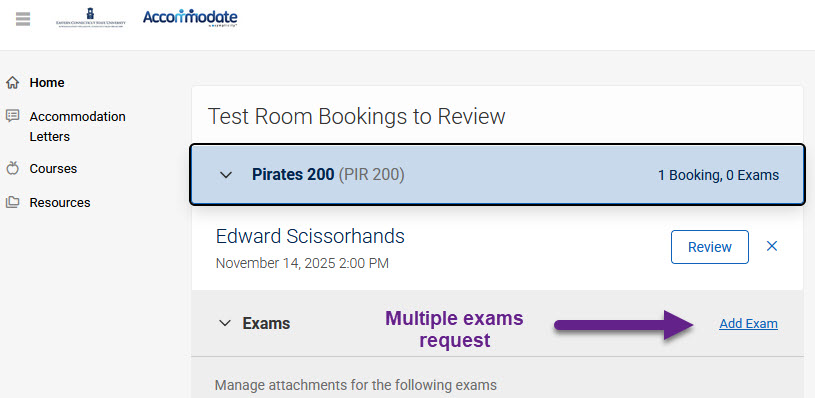
Note: Similar steps to single exams apply to multi-exams.
Select >Apply to all Records >Yes

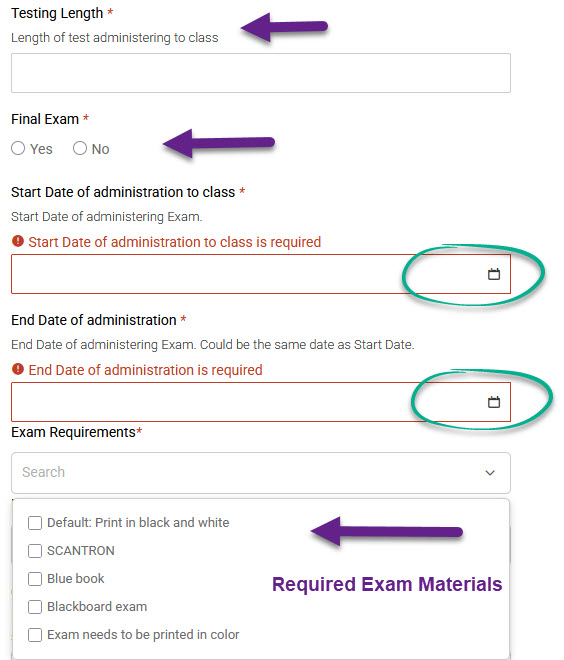
This step connects the exam date you designate for the students in the class. If it must be taken at a specific time, please indicate in the open text box.
2. Ensure student selected correct date, time, and select yes to open the rest of the form.
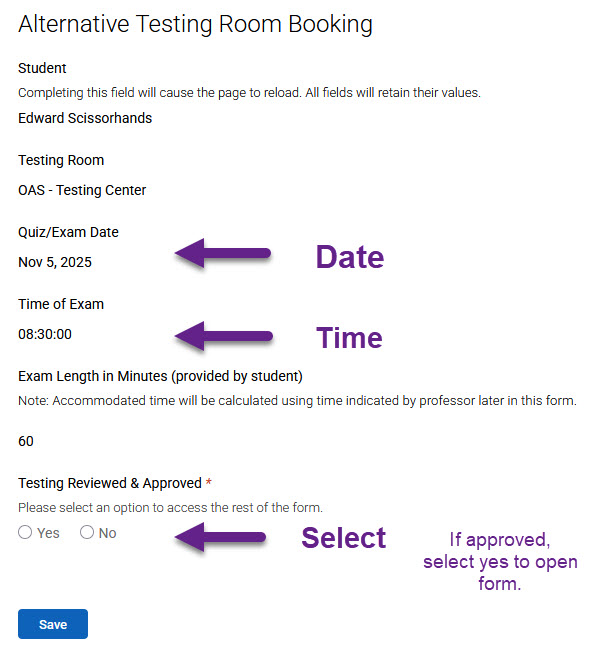
If not approved, please explain.
3. Enter the amount of time given to the class. Note: the OAS calculates accommodated time from the exam duration provided by professors (not by students).
4. Indicate whether it's a final exam.
Select >Exam date >Required materials >Permitted materials (notes, books, stuy guides, etc.).
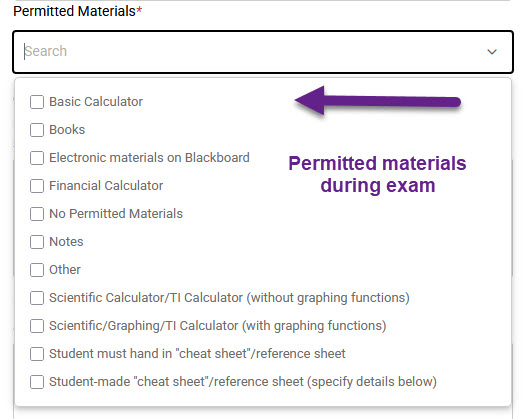
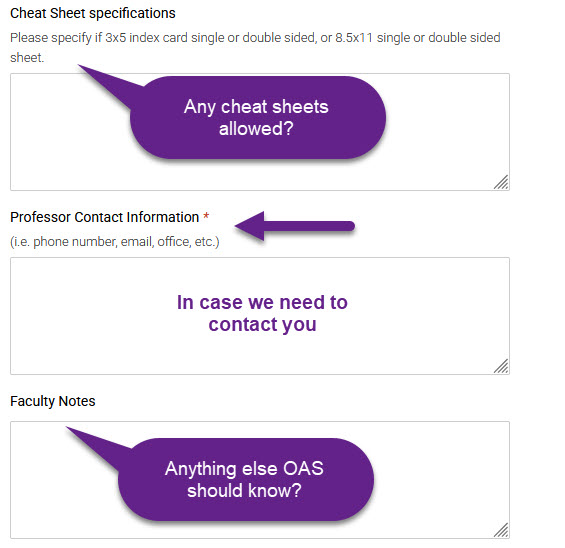
5. Describe cheat sheet information (if permitted), add contact info, and additional notes the OAS might need to know.
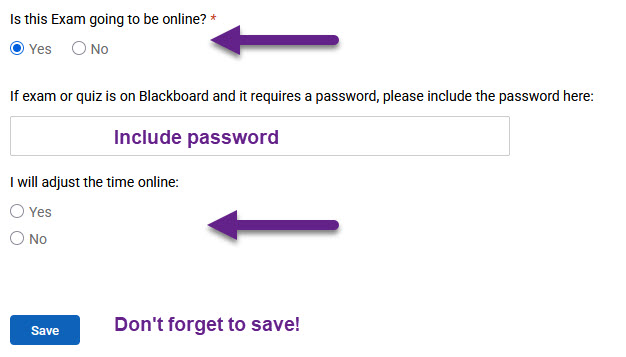
6. (A) ONLINE EXAMS:
Enter password (if needed) >Adjust time if on Blackboard >Save
*The OAS only hosts online exams if they are proctored in class.
(B) IN-PERSON EXAMS:
Upload exam >Select a return option >Save
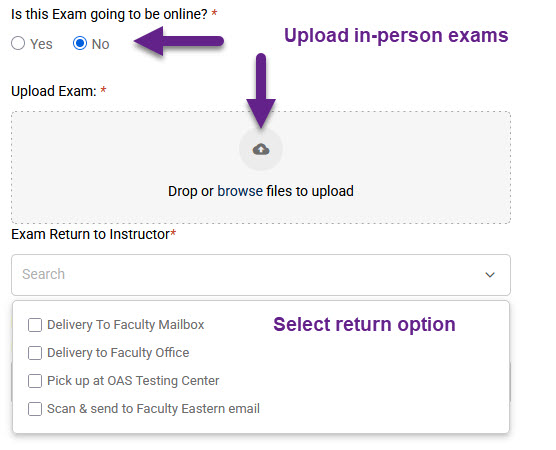
(If select delivery to faculty office, include the office number and be as specific as possible).
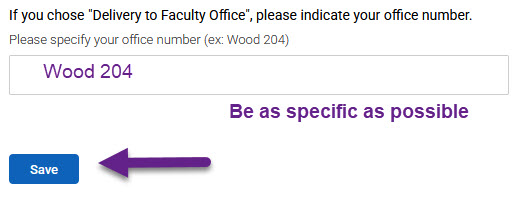
*Exams will be delivered as soon as possible by end of day or within 24 hours depending on staff availability.