
- Apply
- Visit
- Request Info
- Give


Reference Guide
You should have the Map to Banner and ECSU Banner Reporting icons on your desktop.
If these icons are not on your PCs desktop, please call the Information Technology Department at extension 55528.

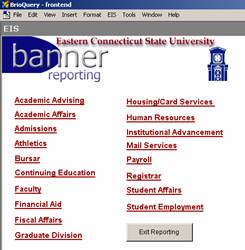
Double-click on the ECSU Banner Reporting icon. The Brio software will launch and the banner reporting window will display. Single-click Faculty.
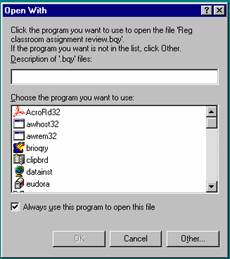
Bad Drive Specification:
Open With dialogue box
Each time you choose a report from the menu, you will be prompted to enter a Login and Password. If you do not know your login and password, please ask your departmental secretary or call the Banner Department at ext. 55528 or 55532.
With each report, you must select the term and the desired output prior to running the report.
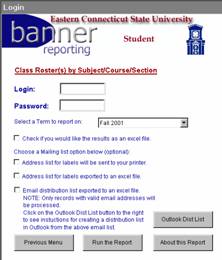
Possible outputs include:
Report results will also appear in the Brio report window in addition to the output you have selected.
For more information click About this Report. This will give a brief description of the report. Database is set to EPROD. For your purposes, this is the correct choice.
When you choose a report from the faculty menu by clicking the name, depending on the report you have chosen, you will be prompted for parameters such as: Course Reference Number (CRN), Subject Code, Course Number, Section Number.
Below (right) is an example of a dialogue box for Course Reference Number. You can type in the CRN and click the green check mark to add it to the list (repeat to add multiple CRNs to the list). Then holding down the Ctrl key, select your choices from the list and click OK or Click Ignore and narrow your search in the following Subject, Course Number, and Section dialogue boxes.
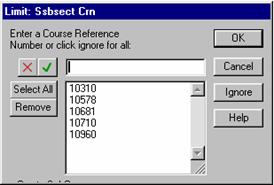
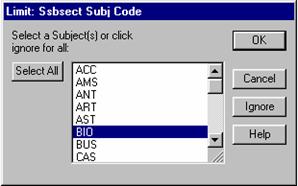
Clicking on CANCEL in any of these dialogue boxes terminates the execution of the report. To return to Brio if you have cancelled the execution, click cancel in the print dialogue box, then click on the blue arrow pointing to the left in the upper right corner of your screen.
When the report has finished processing, a print dialogue box will appear. Choose which printer and number of copies and click OK. If you do not want to print, just click cancel.
To return to the login screen after running the report, click on the blue arrow pointing to the left. To return to the menu from there, click on the Previous Menu button.